
Name, logo and colour
Give your workspace its own name, logo and brand colour in Admin › Workspace, and choose who can invite guests.
Owners and admins can make Huddle look like their own. This page covers the settings in Admin › Workspace.
Name
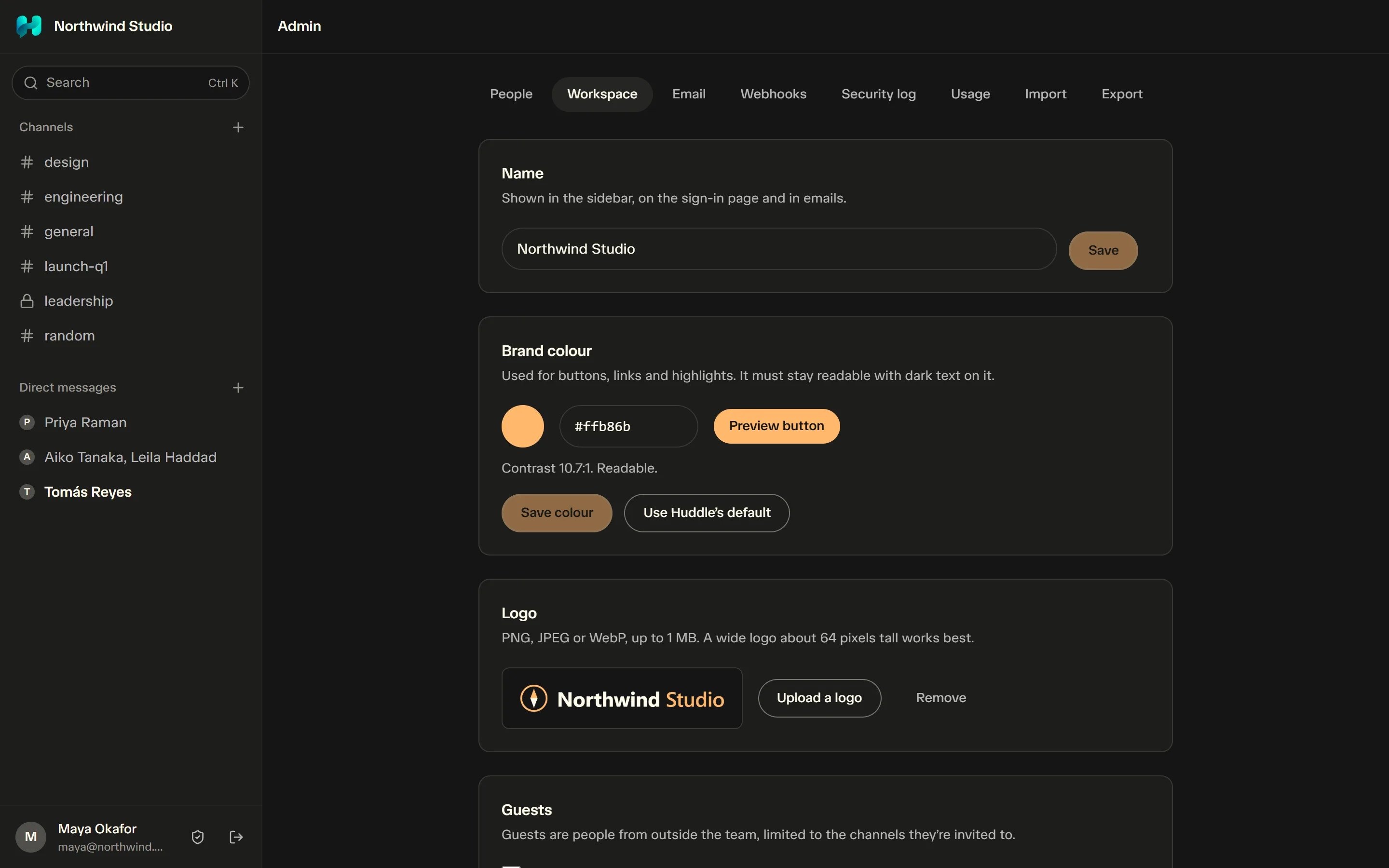
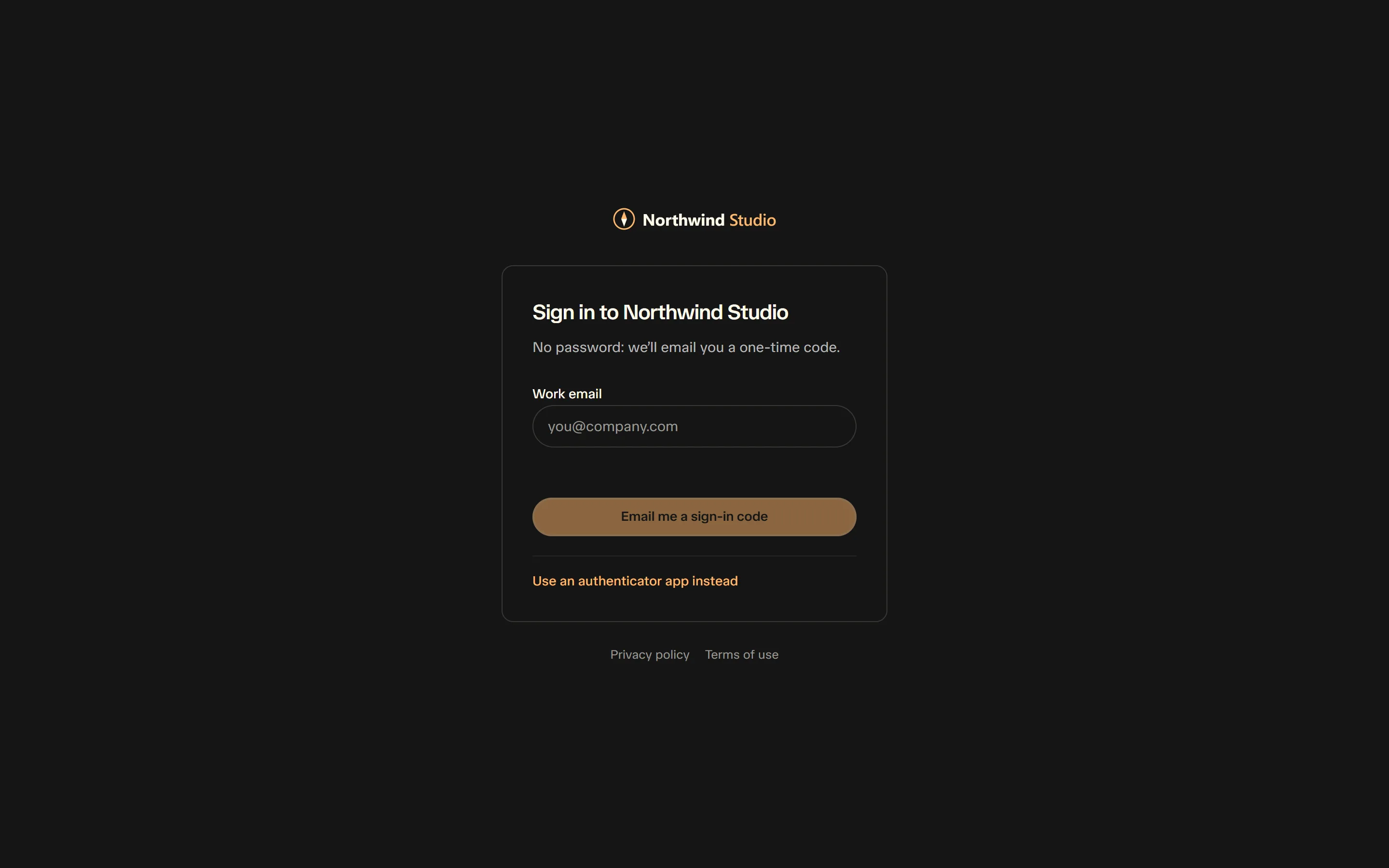
Type a new Name and select Save. It appears in the sidebar, on the sign-in page, in the browser tab, in emails and in the authenticator app entry of anyone who sets one up afterwards.
Logo
Select Upload a logo and pick an image. It’s shown on the sign-in page and in emails.
- PNG, JPEG or WebP, up to 1 MB.
- A wide logo about 64 pixels tall works best.
- SVG isn’t accepted, because the logo is shown to people who aren’t signed in and SVG files can carry scripts.
Select Remove to go back to the Huddle logo.
Brand colour
The brand colour is used for buttons, links and highlights.
- Under Brand colour, pick a colour or type a colour code such as
#00b18c. - Huddle shows the contrast with the dark button text. It needs at least 4.5:1, so text on buttons stays readable.
- Select Save colour.
Colours that are too dark are refused with a suggestion to try a lighter shade. Select Use Huddle’s default to go back to Huddle’s teal.
Guests
Tick Members can invite guests to allow members, not only owners and admins, to invite guests. See People and roles.
Every change on this page is recorded in the security log, with what it changed from and to.