
Import from Slack
Bring channels, messages, threads, reactions and files across from a Slack export, in your browser.
The owner can bring a team’s history across from Slack. This page explains how to get the export from Slack, what is imported and how large imports are spread over several days.
What’s imported
- Public channels and private channels, with their members and topics.
- Messages, threads and reactions, with their original dates and authors.
- Direct messages, if you choose to include them.
- Files, if you choose to copy them.
Your Slack workspace isn’t changed.
Get the export from Slack
- In Slack, a workspace owner or admin opens Tools & settings › Workspace settings › Import/Export data › Export.
- When Slack emails that it’s ready, download the
.zip.
Which channels and conversations the export contains depends on your Slack plan and the kind of export Slack allows.
Run the import
- In Huddle, open Admin › Import. Only the owner can import.
- Drop the Slack export on the page, or select Choose the .zip. The zip is read in your browser; only its content is sent to Huddle.
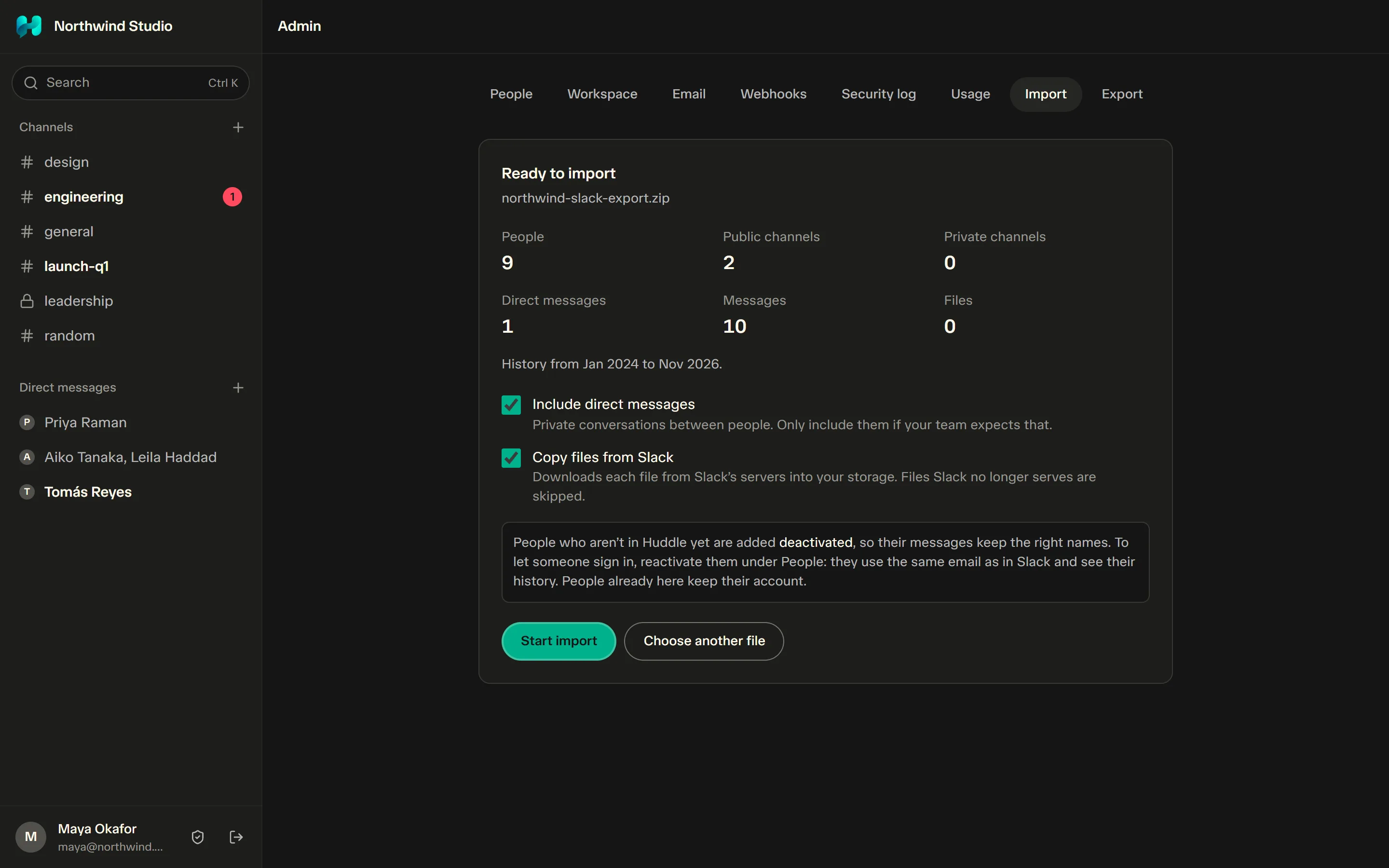
- Huddle shows what it found under Ready to import: public channels, private channels, direct messages, messages and files.
- Choose whether to Include direct messages. These are private conversations between people, so only include them if your team expects that.
- Choose whether to Copy files from Slack. Huddle downloads each file from Slack’s servers into your own storage. Files Slack no longer serves are skipped.
- Select Start import and keep the page open while it runs.
Select Pause at any time. Select Continue import later, with the same zip, to carry on where it stopped. When it’s done, the page says Import finished and the imported channels appear in the sidebar.
People
Slack users are matched to Huddle accounts by email address:
- People who are already in your Huddle keep their own messages.
- Everyone else becomes a deactivated placeholder, so old messages keep their author’s name. Nobody can sign in as a placeholder.
To bring someone in whose placeholder has their real email address, don’t invite them: select Reactivate next to their name in Admin › People. They then sign in with an emailed code, or you select Reset app and send them the link to set up an authenticator app. Their imported history is already theirs. People the export had no email for get a placeholder address that can’t be used to sign in.
Channel names
If a channel with the same name already exists in Huddle, the imported one is named with -imported on the end, for example design-imported.
Large imports
To stay inside Cloudflare’s free plan, Huddle imports at most 20,000 messages a day. If an import reaches that, it stops and says so. Come back the next day and select Continue import with the same zip.
Running the same import again is safe: messages already imported are skipped. Admin › Usage shows how many messages were imported today.
Starting and finishing an import are recorded in the security log.