
Channels and direct messages
Create, join, rename, leave and archive channels, and start one-to-one or group direct messages.
Conversations in Huddle are either channels or direct messages. This page explains the difference and how to manage both.
Public and private channels
| Public channel | Private channel | |
|---|---|---|
| Shown with | # |
A lock |
| Who can find it | Everyone on the team except guests | Only its members |
| How you get in | Join it yourself | Someone inside adds you |
| Can you read before joining | Yes | No |
Everyone starts in #general, the channel for announcements and everyday chat. It can’t be archived.
Create a channel
- In the sidebar, select Add a channel next to Channels.
- Select Create a channel.
- Type a Name, for example launch-plans, and an optional Topic.
- Under Who can find it, choose Public or Private.
- Select Create channel.
Channel names use lowercase letters, numbers, dashes and underscores, up to 80 characters. Huddle turns spaces into dashes for you. Guests can’t create channels.
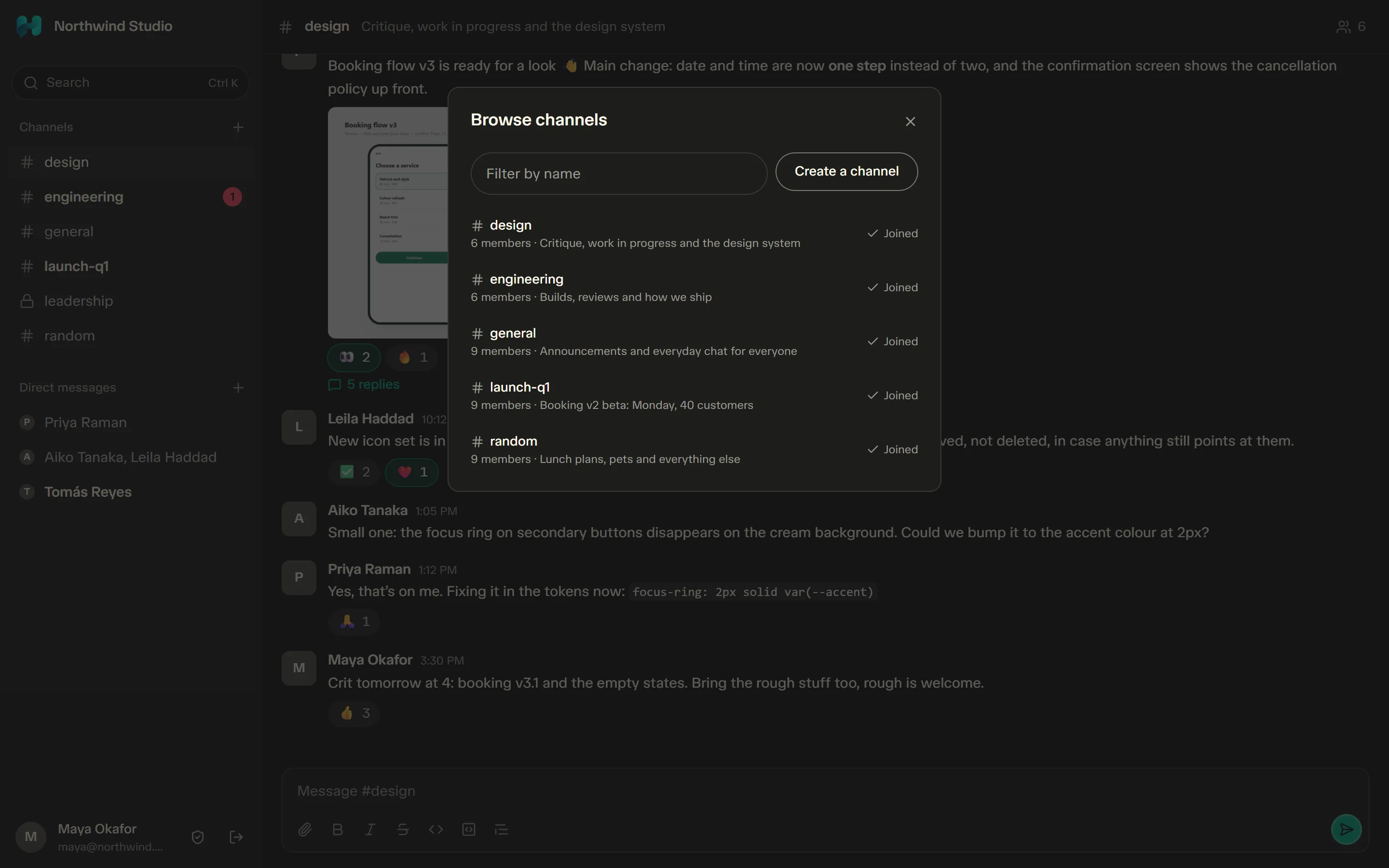
Join a public channel
Select Add a channel to open Browse channels. Select a channel to read it first, or Join to join it straight away. While you’re only reading, a bar at the bottom says you can Join channel to post and get its notifications.
Channel details
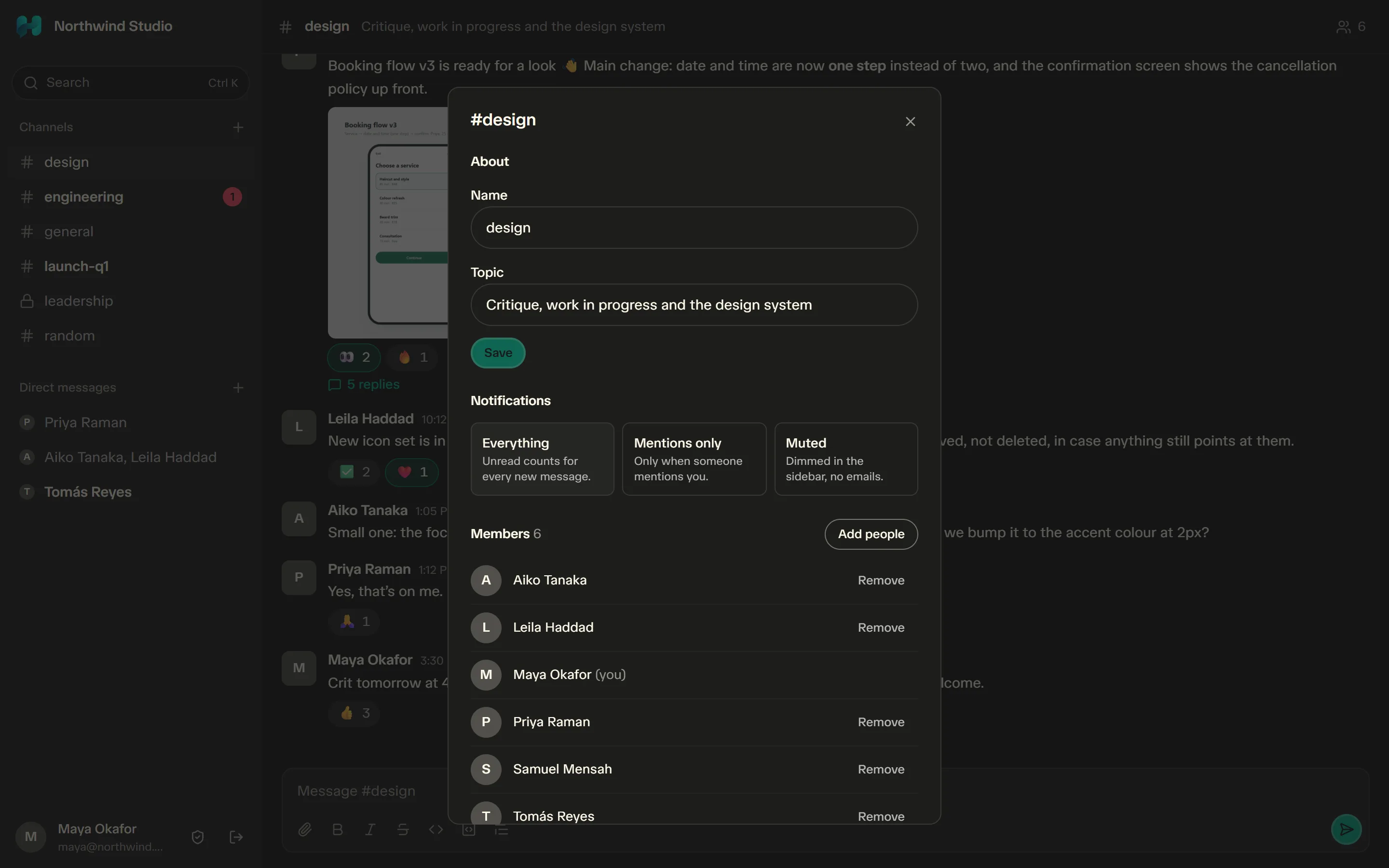
Select the people count in the top-right corner of a channel to open its details. There you can:
- Change the Topic. Anyone in the channel can do this.
- Change the Name. Only the person who created the channel and admins can.
- Choose your Notifications for this channel (see Notifications).
- See the members and Add people. Guests can’t add people, and only owners and admins can add a guest to a channel.
- Remove someone (owners and admins only). They stop seeing new messages there.
- Leave channel. For a private channel, someone inside has to add you back.
- Archive channel (its creator and admins). It disappears from everyone’s sidebar and nobody can post, but its history stays searchable.
If a guest is in a conversation, a note at the top says so, so you always know when someone from outside your team can read it.
Direct messages
Direct messages (DMs) are private conversations between up to nine people.
- In the sidebar, select New message next to Direct messages.
- Pick one person, or up to eight for a group message.
- Select Message.
The same group of people always gets the same conversation, so starting a new message to someone you’ve written to before opens your existing DM. A DM with just yourself is your own space for notes, drafts and reminders.
You can’t leave, rename or archive a DM. Guests can only message people they share a channel with.