
Signing in
Sign in with an authenticator app or an emailed code, move to a new phone, and stay safe with the manual key.
Huddle has no passwords. You sign in with a 6-digit code, either from an authenticator app on your phone or sent to your email. This page explains both, and what to do when you change or lose your phone.
With an authenticator app
This always works, even if your Huddle doesn’t send email.
- Open your Huddle address. If the page offers an emailed code, select Use an authenticator app instead.
- Type your Work email.
- Type the current 6-digit Code from your authenticator app.
- Select Sign in.
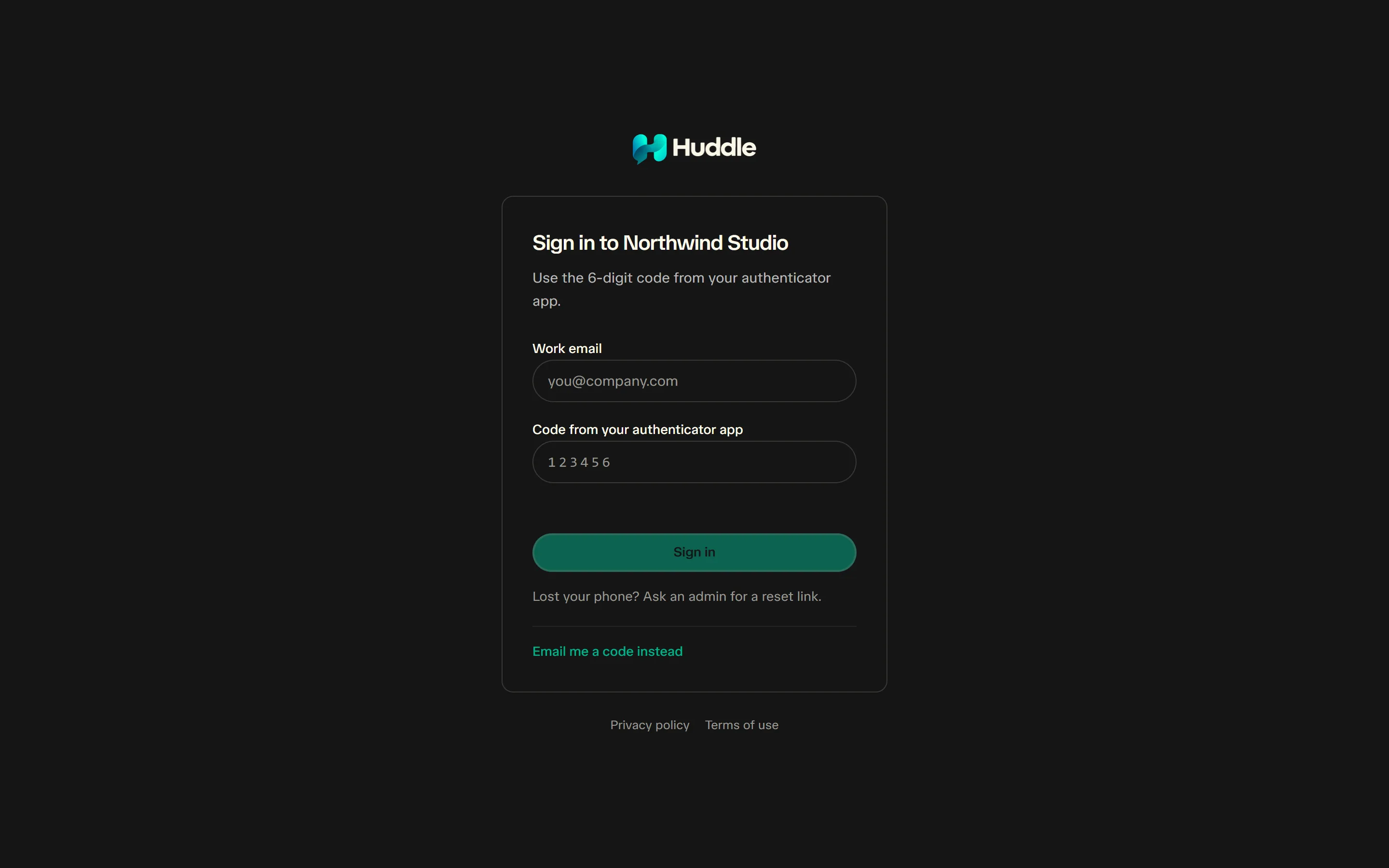
An authenticator app is a free phone app that shows a new 6-digit code every 30 seconds. Any of the common ones works: Google Authenticator, Microsoft Authenticator, Authy, 1Password and others. Each code works only once, and it doesn’t matter if your phone’s clock is a few seconds off.
With an emailed code
If email is set up, the sign-in page starts with this.
- Type your Work email and select Email me a sign-in code.
- Type the 6-digit Sign-in code from the email and select Sign in.
The code works once, for 5 minutes. If it doesn’t arrive, wait 30 seconds and select Send a new code, and check your spam folder.
How long you stay signed in
You stay signed in on each device for 30 days, renewed while you keep using Huddle. Select Sign out (at the bottom of the sidebar) to sign out of that device.
Set up or change your authenticator app
In Your settings › Authenticator app:
- Set up adds an authenticator app if you joined with an emailed code.
- Move to a new phone sets up the app on your new phone. Your old phone keeps working until you confirm the new one.
- Turn off removes it. You can then only sign in with emailed codes, so only do this if your Huddle sends email.
If you lose your phone
Ask an owner or admin for a reset link. They create it in Admin › People with Reset app. The link works once, for 7 days, and lets you set up the app on your new phone. Your old app keeps working until you use it.
If you’re the owner, open /signin?owner=recover on your Huddle address and sign in again with your email and the setup key.
Keep the manual key safe
When you set up the app, Can’t scan? Enter this key instead shows the secret behind your codes. Anyone with that key can make your codes. Type it into your authenticator app and nowhere else: don’t screenshot it, email it or keep it in a note.
Too many wrong codes
After 8 wrong authenticator codes in a row, signing in with the app is locked for 15 minutes. Emailed codes allow 3 tries each, and you can ask for up to 5 codes an hour. Failed attempts are recorded in the security log, so admins can spot someone guessing.
Deactivated accounts
If an admin deactivates your account, you’re signed out everywhere and can’t sign in until they reactivate you.