
Threads
Reply to a message in a thread to keep side conversations out of the main channel, and send a reply to the channel too.
Threads let you answer one message without filling the channel. This page shows how to start, follow and share a thread.
Reply in a thread
- Hover over a message (or move to it with the keyboard) and select Reply in thread.
- The thread opens beside the conversation (on a phone, it opens full screen).
- Type your reply in the Reply… box and press Enter.
The message in the channel now shows how many replies it has, for example 3 replies. Select it to open the thread again.
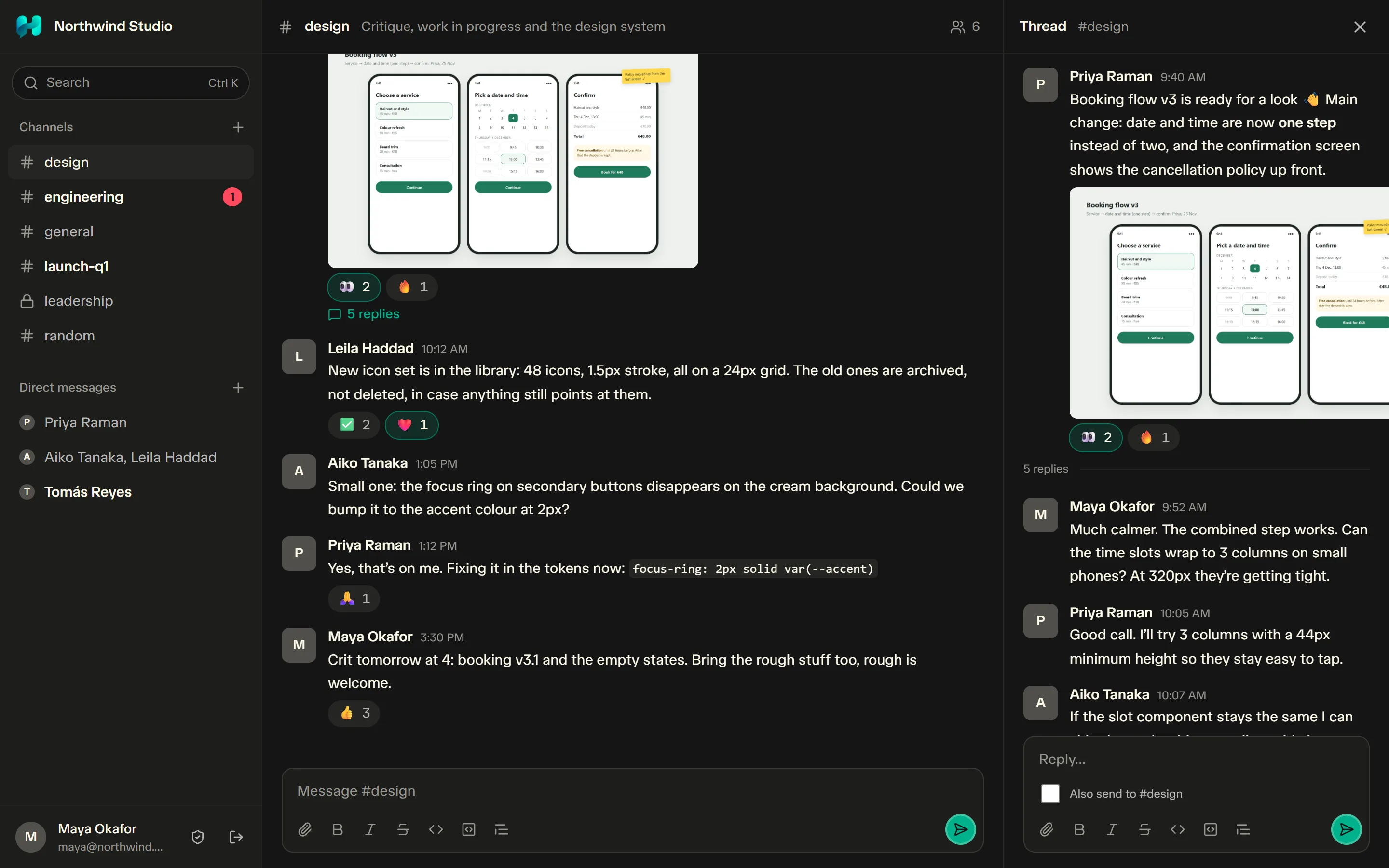
Also send to the channel
Under the reply box, tick Also send to followed by the channel’s name to post your reply in the channel as well. Use it for conclusions everyone should see. In the channel, the message is marked Also replied in a thread.
Who gets notified
When someone replies in a thread, Huddle notifies the person who wrote the first message and everyone who has replied so far, as long as they’re still in the conversation. Mentions in a reply notify the people mentioned, as usual.
Thread replies don’t add to the channel’s unread count, unless they were also sent to the channel.
Close a thread
Select Close thread, or on a phone Back to the conversation. Anything you had typed stays as a draft for that thread while Huddle is open.