
Your settings
Change the name people see, manage your authenticator app, this device and your email notifications.
Everything about your own account is in one place. Select your name at the bottom of the sidebar to open Your settings.
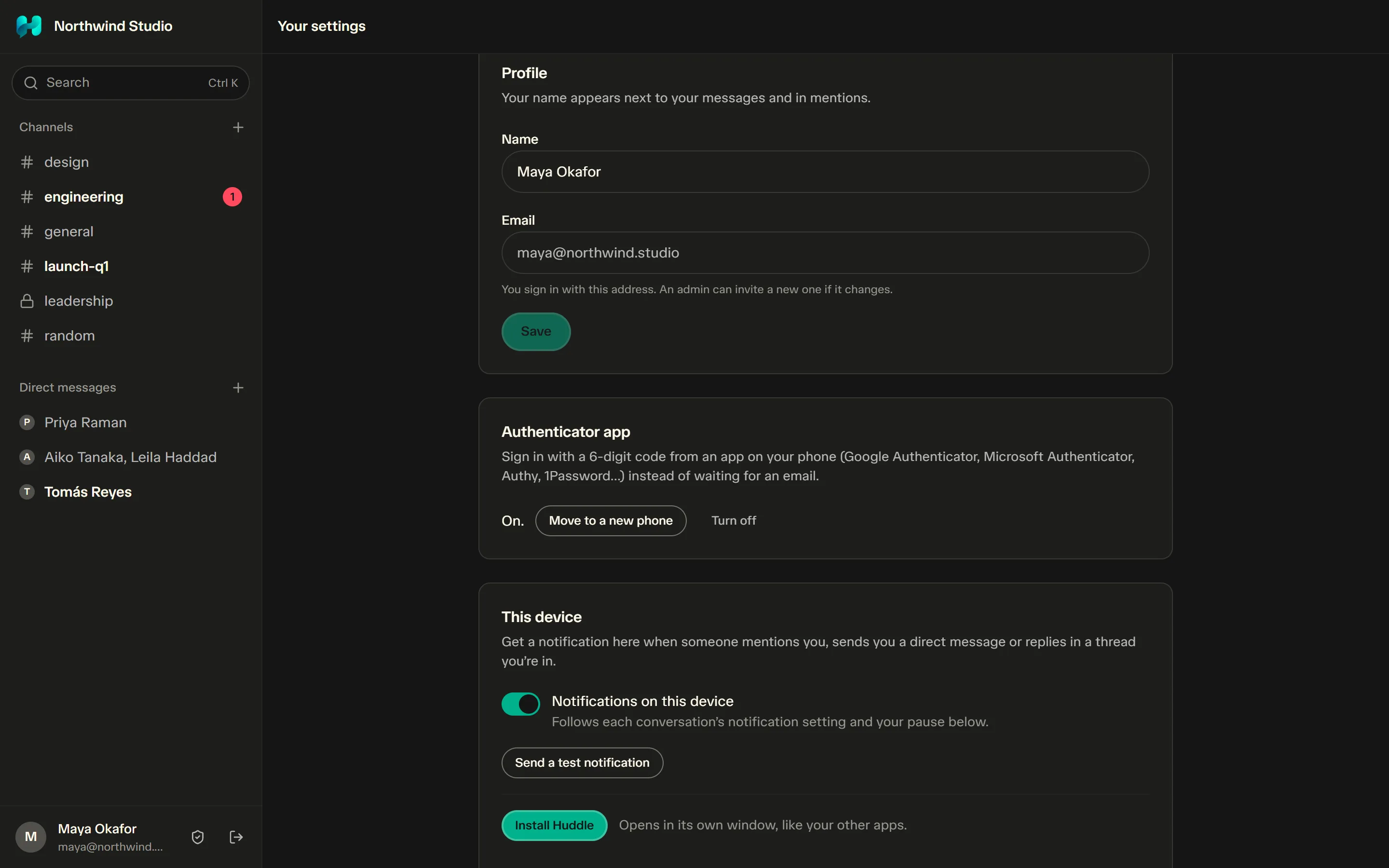
Profile
- Name is how you appear next to your messages and in mentions. Change it and select Save. Your old mentions update to the new name automatically.
- Email is the address you sign in with. You can’t change it yourself; if it changes, an admin can invite your new address.
Authenticator app
Set up an authenticator app, move it to a new phone, or turn it off. See Signing in.
This device
Turn notifications on or off for the phone or computer you’re using, send a test notification, and install Huddle as an app. See Install the app.
Email notifications
Choose how often Huddle emails you a summary of what you missed, how long it waits first, your time zone, and pause everything for a while. See Notifications.
Privacy policy and terms
Links to this Huddle’s privacy policy and terms of use are at the bottom of Your settings and on the sign-in page. They describe what is stored and that the organisation running the workspace is responsible for it.