
Invite your team
Send invitation links with the right role, share them by email or by hand, and see who has joined.
Huddle is invite-only. This page shows how to invite people, what they see when they open the link, and how to withdraw an invitation.
Send an invitation
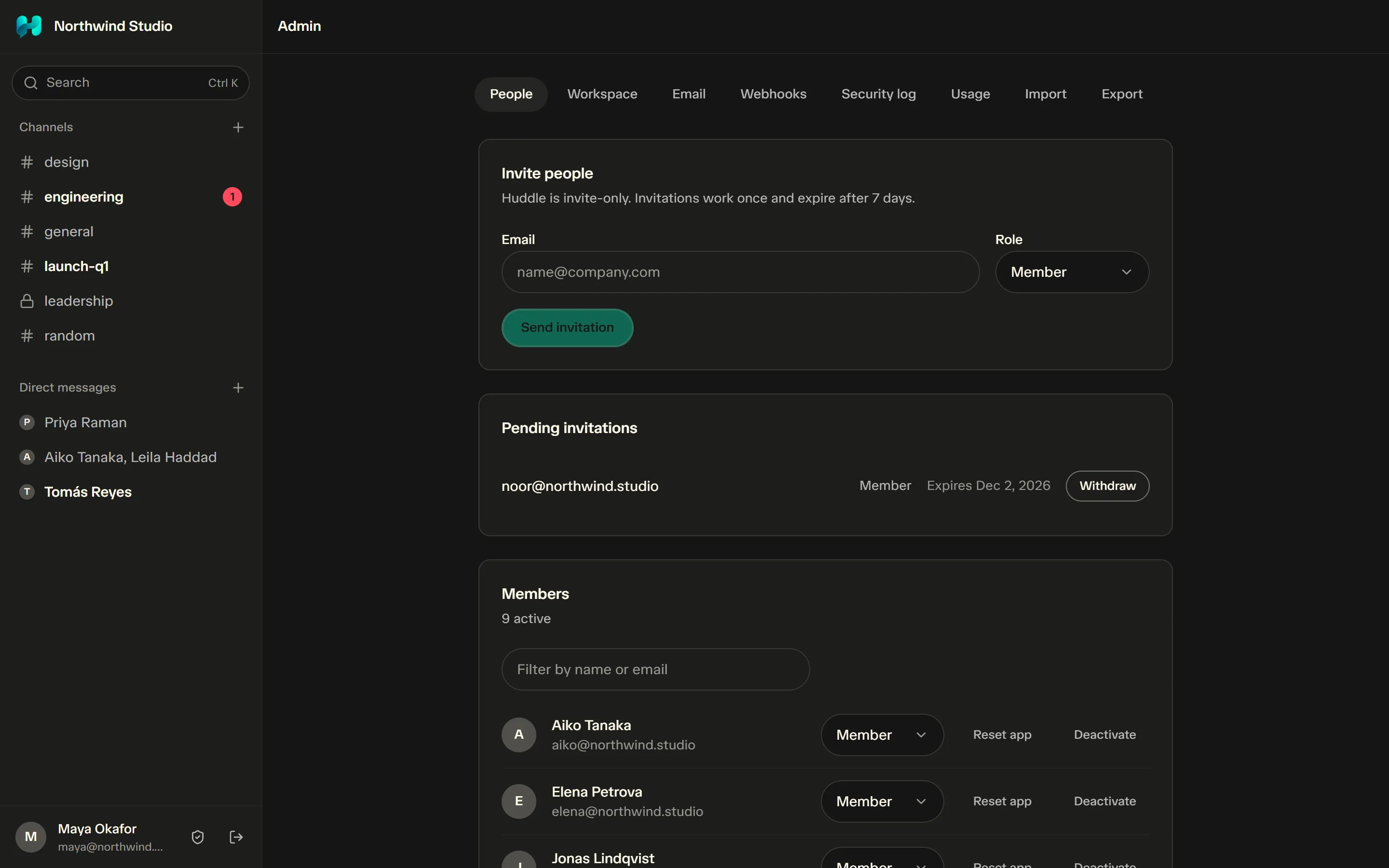
Owners and admins invite people from Admin › People.
- Select the Admin icon at the bottom of the sidebar, then People.
- Under Invite people, type the person’s Email.
- Choose a Role: Member, Guest or (owners only) Admin. See People and roles for what each can do.
- For a guest, pick the Channels the guest can see. Guests need at least one.
- Select Send invitation.
Share the link
What happens next depends on whether email is set up:
- With email, Huddle emails the invitation and shows Invitation emailed to followed by the address.
- Without email, Huddle shows the Invitation link with a Copy button. Send it to the person yourself, in any chat or email you like.
Each invitation works once and expires after 7 days. Inviting the same address again replaces the older invitation.
What the invited person sees
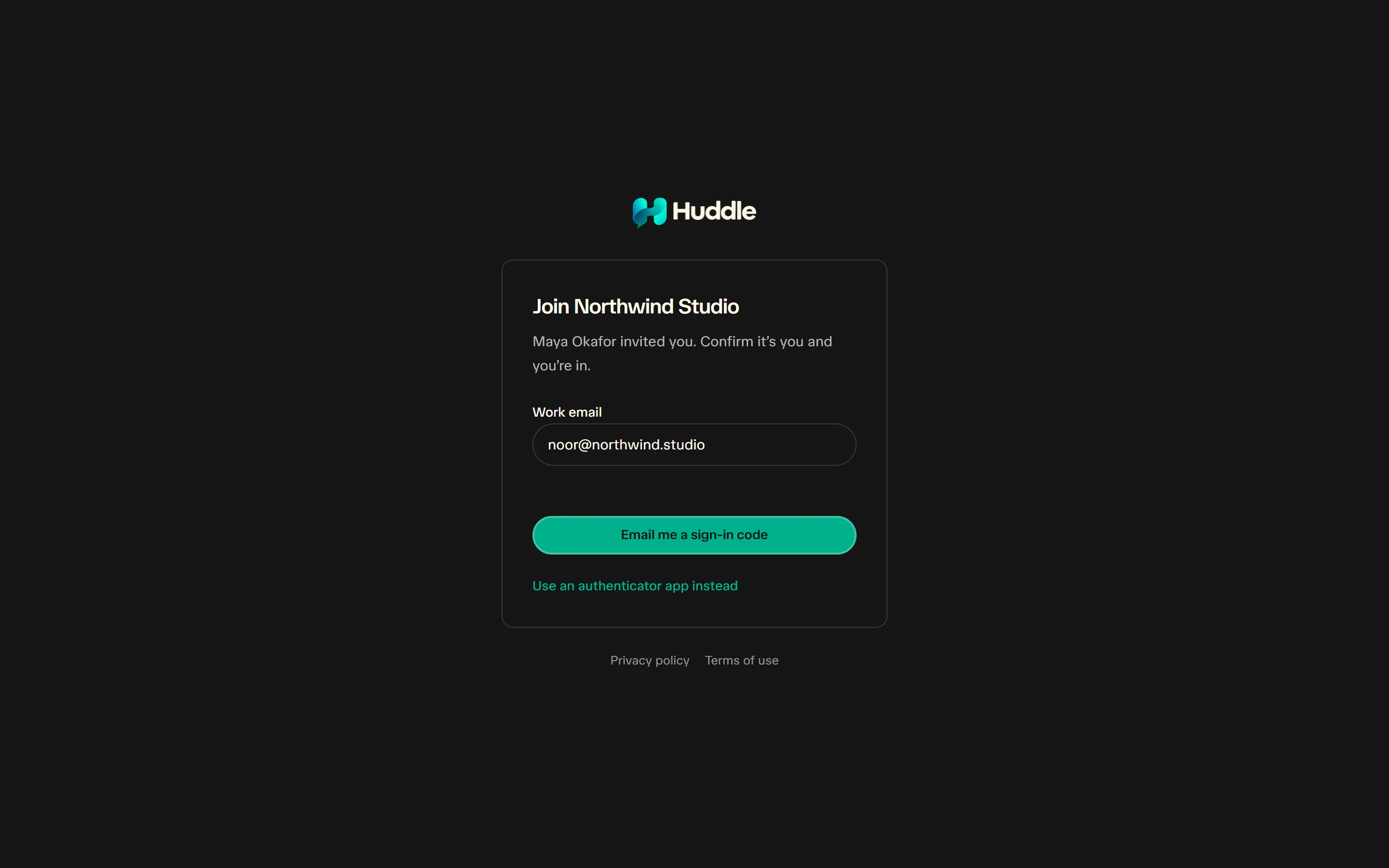
The link opens a page titled Join followed by your workspace name, saying who invited them. To accept, they confirm it’s them:
- If email is set up, Huddle sends a 6-digit code to the invited address. They can choose Use an authenticator app instead.
- If email isn’t set up, they set up an authenticator app straight away: scan the QR code and type the code it shows.
Then they choose the name people will see. Members and admins start in #general; guests start in the channels you picked.
If a link has expired, was used already or was withdrawn, the page says This invitation can’t be used and asks them to get a new one.
Pending invitations
Invitations that haven’t been accepted yet appear under Pending invitations, with the role and expiry date. Select Withdraw to cancel one: the link stops working at once.
Next
Install Huddle as an app on your phone and computer.