
Notifications
How unread counts, device notifications, email summaries, per-conversation levels and pausing work together.
Huddle tells you about new messages in three ways: unread counts in the app, notifications on your devices, and email summaries of what you missed. This page explains each one and how to tune them.
What counts as “for you”
Huddle notifies you about:
- Mentions of you,
@channelor@here. - Direct messages sent to you.
- Replies in threads you started or replied in.
You’re never notified about your own messages, and only about conversations you’re still in.
Unread counts
In the sidebar, conversations with new messages are shown in bold, and a number shows how many times you’ve been mentioned (up to 99+). The browser tab’s title shows how many conversations are waiting.
When you open a conversation, a New line marks where you stopped reading, and a New messages button takes you down if you’re scrolled up. What you’ve read is remembered across all your devices.
Notifications on your devices
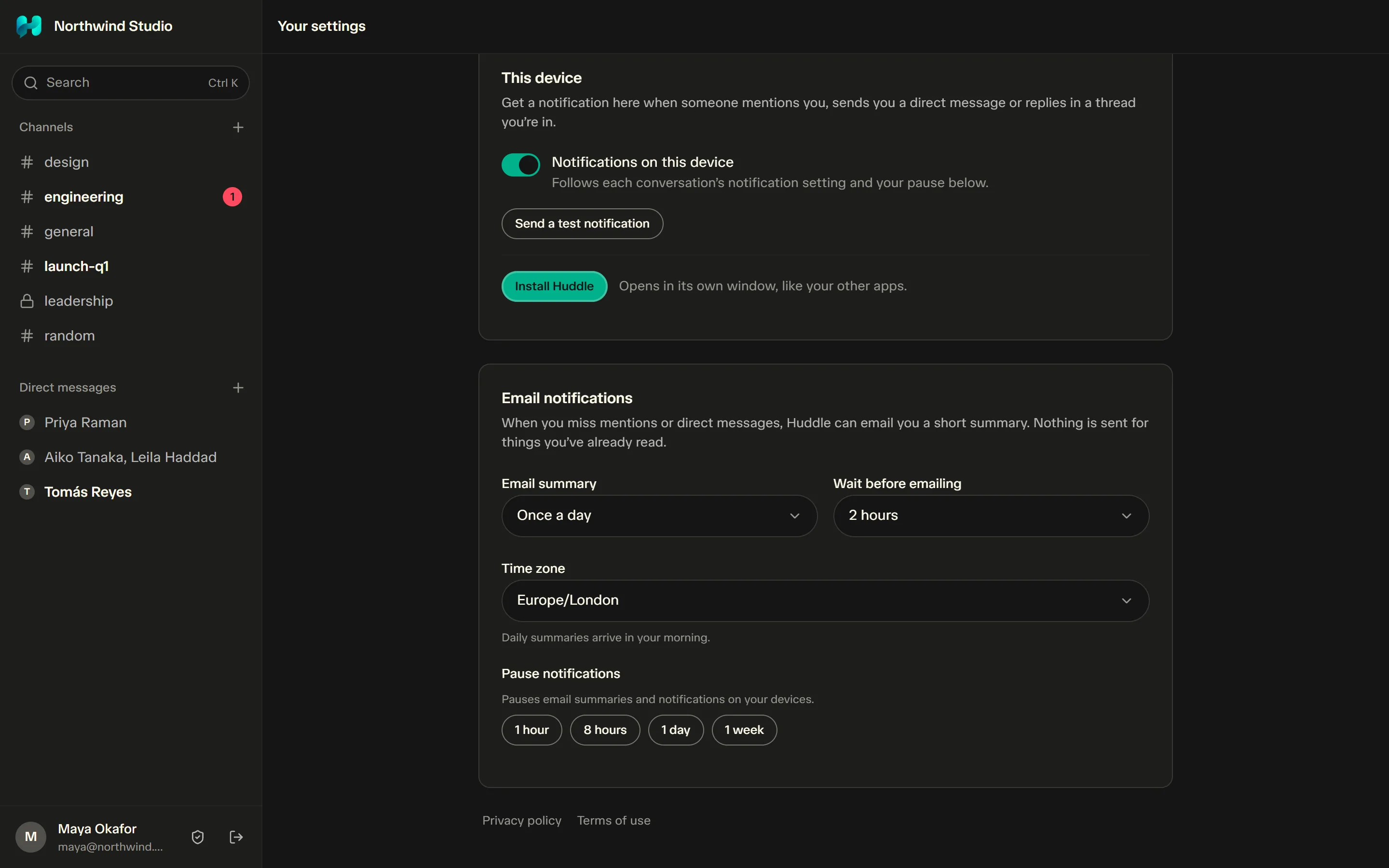
Turn them on for each phone or computer in Your settings › This device (see Install the app). Selecting a notification opens the message it’s about. You can have notifications on up to 10 devices.
Each notification shows who wrote and where, with a short preview. A newer notification from the same conversation replaces the older one, so your screen doesn’t fill up. Notifications are scrambled (encrypted) on the way, so the company that delivers them to your device, such as Google or Apple, can’t read them.
Email summaries
If email is set up, Huddle can email you a short summary of mentions, direct messages and thread replies you haven’t read. Nothing is sent for things you’ve already read on any device.
Set this up in Your settings › Email notifications:
| Setting | Choices | Default |
|---|---|---|
| Email summary | At most every hour, Once a day or Never | At most every hour |
| Wait before emailing | 15 minutes, 30 minutes, 1, 2 or 4 hours | 2 hours |
| Time zone | Any time zone | UTC |
- Wait before emailing gives you time to read things in the app first. Only messages that have stayed unread that long go into a summary.
- Once a day summaries arrive in your morning, from 8:00 in your time zone. Select Use that to match your device’s time zone.
- A summary shows up to 10 messages, each with a link to open it.
- Every summary has an unsubscribe link that turns summaries off without signing in.
Per-conversation levels
In each conversation’s details, under Notifications, choose:
| Level | What it means |
|---|---|
| Everything | Unread counts for every new message. |
| Mentions only | Only when someone mentions you. |
| Muted | Dimmed in the sidebar, no emails. |
The level applies to device notifications and email summaries too. In a muted conversation you get neither.
Pause notifications
Under Pause notifications in Your settings, choose 1 hour, 8 hours, 1 day or 1 week. This pauses email summaries and notifications on all your devices. Select Resume now to end the pause early.
Daily email budget
Gmail limits how many emails an account can send in a day. To leave room for sign-in codes and invitations, Huddle stops sending summaries for the day once 80 emails have gone out. Anything left waits for the next day’s summaries. Owners and admins can see today’s count in Admin › Usage.