
Your first sign-in
Become the workspace owner with your setup key and an authenticator app, then name your workspace.
The first person to sign in is the workspace owner. This page shows how to sign in with your setup key and an authenticator app, and how to name your workspace.
Sign in as the owner
Open your Huddle address. On a fresh install the page is titled Set up Huddle.
- In Your email, type the
ADMIN_EMAILyou deployed with. - In Setup key, paste the setup key you made when you deployed (the
BETTER_AUTH_SECRETsetting). - Select Continue.
- Open your authenticator app and add an account by scanning the QR code. If you can’t scan it, open Can’t scan? Enter this key instead and type the key into the app. Choose a time based code.
- Type the 6-digit code the app now shows for Huddle, then select Confirm.
You’re signed in. Nobody else can do this, because it needs both your email address and your setup key.
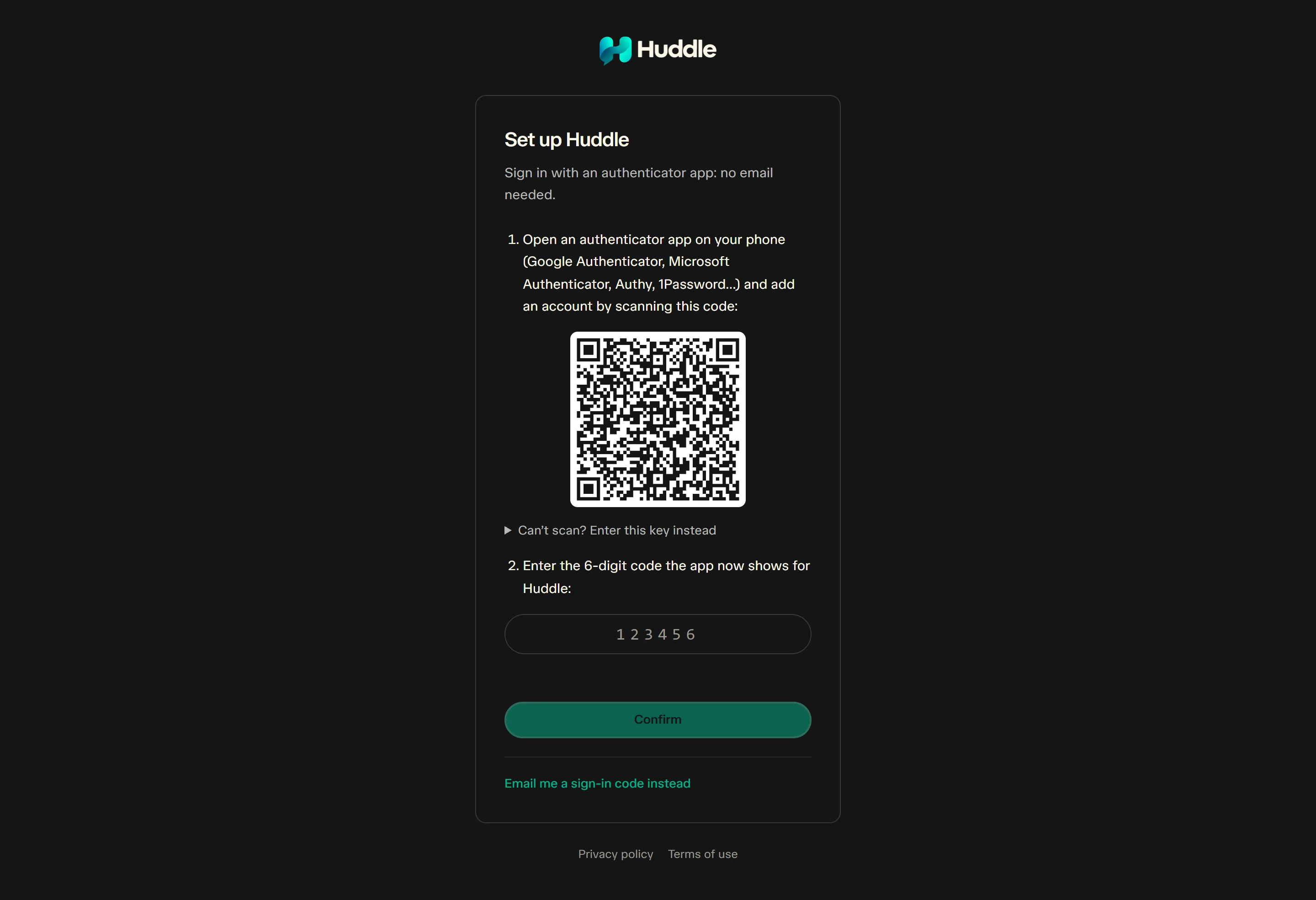
If you set up email before your first sign-in, the page offers an emailed code instead: type your ADMIN_EMAIL, select Email me a sign-in code and enter the 6-digit code from your inbox. You can add an authenticator app afterwards in Your settings.
Name your workspace
Next, Huddle asks for two things:
- Workspace name: your company or team, for example Northwind Studio.
- Your name: how your team will see you.
Select Create workspace. Huddle creates the workspace, makes you its owner, and creates #general, the channel everyone joins.
You can change the workspace name later in Admin › Workspace, and your own name in Your settings.
After that
From now on you sign in on the normal sign-in page with your email and the current code from your authenticator app. See Signing in for the details, including what to do on a new phone.